WINDBI
The extension embeds full WINDBI functionality in VS Code, providing an SQLI development and diagnostics console within the editor.
Accessing WINDBI Commands
Option 1: Environments Explorer
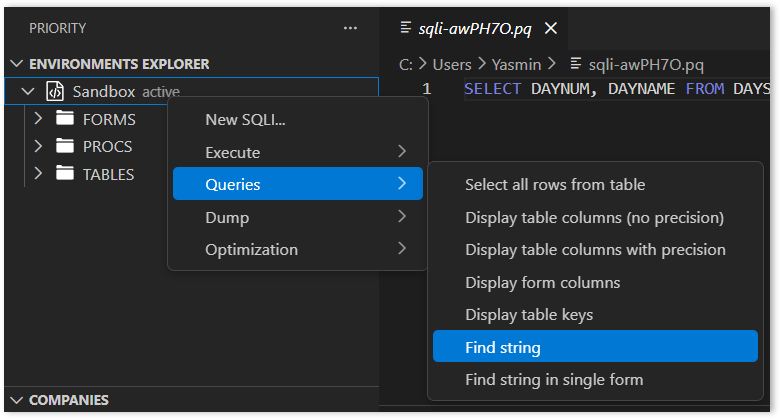
Right-click the active environment in the Environments Explorer and select from the available WINDBI commands.
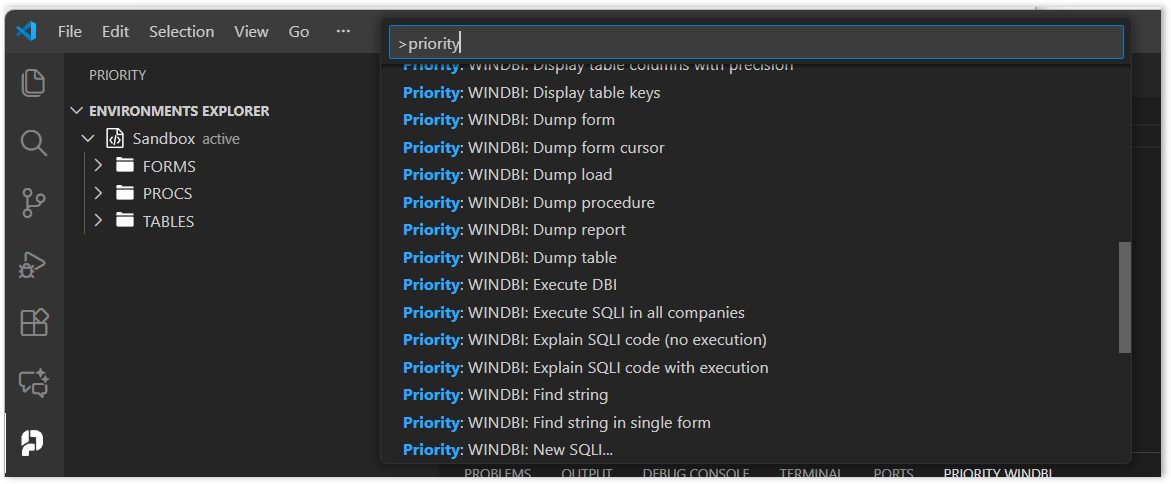
Option 2: Command Palette
- Press
F1orCtrl+Shift+P. - Type “Priority”.
-
Select the desired command.
Working with SQLI Files
Creating a New SQLI File
- Right-click any environment → New SQLI….
- Enter a filename (or leave blank for an auto-generated name).
- The file opens with a
.pqextension.
Status Bar Information
When a .pq file is active, the status bar displays:
- Active Environment: Currently selected Priority environment.
- Active Company: Currently selected company (clickable to switch).
Running SQLI
SQLI can be run from any active .pq file:
- Click the Run SQLI ▶ button (top-right of editor).
- Press
Alt+X. - Command Palette (
F1) → Priority: Run SQLI.
WINDBI Results Panel
All WINDBI output appears in the PRIORITY WINDBI panel, including:
- Command metadata (environment name, company name, file name, execution timestamp, execution duration)
- Query results or diagnostics output
- Error messages (if applicable)
The background color of company metadata matches the Color field defined in the Companies form, making it easy to identify which company’s data you’re viewing.
Companies Explorer
The Companies Explorer appears below the Environments Explorer when a .pq file is active. It lists all companies in the active environment.
To switch companies:
- Click a company name in the Companies Explorer.
- The Active Company updates in the status bar.
- Subsequent SQLI executions run in the selected company.
Company selection is saved per environment in VS Code settings.
Advanced Code Search
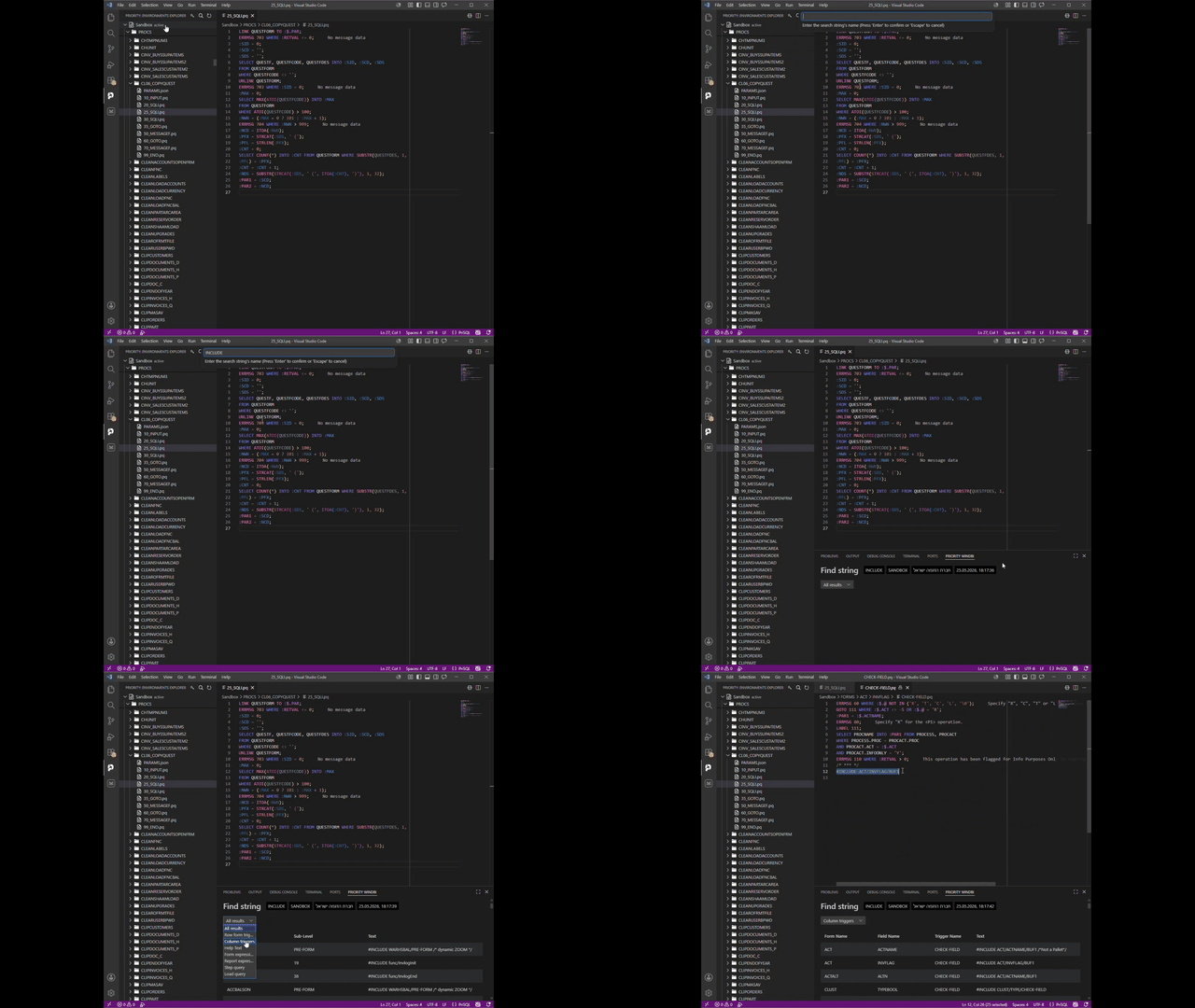
WINDBI’s Find String tools are available in VS Code with direct navigation from search results to the exact line in the source file.
Find String (Global Search)
-
Right-click the active environment → Queries → Find String, or use the Command Palette (
F1). -
Enter search text.
-
Results appear in the WINDBI panel with a filter dropdown.
Results can be filtered by category:
- All Results
- Row Form Triggers
- Column Triggers
- Form Expressions
- Report Expressions
- Step Query
- Load Query
Find String in Form (Scoped Search)
-
Right-click the active environment → Find String in Form.
-
Enter search criteria in one of the following formats:
- Single word:
ERRMSG CUSTOMERS— displays all errors in the CUSTOMERS form. - Multiple words:
ERRMSG?12?WHERE CUSTOMERS— displays only error message 12 in the CUSTOMERS form.
- Single word:
-
Results are scoped to triggers within the specified form.
Navigating Results
For form/column triggers and step queries, click any result row to open the file and jump to the exact matching line.
For expressions, results display the expression text only — manual navigation is required, as expressions are not stored in .pq files.