Extension Enhancements to the VSCode Editing Environment
The Priority Dev Tools extension adds the following Priority-specific capabilities to the VS Code editing environment:
| Feature | Purpose |
|---|---|
| Environments Explorer | Browse and open forms, procedures, and tables |
| Syntax Highlighting | Color-coded Priority SQL and triggers |
| Syntax Checking | Real-time SQLI validation |
| IntelliSense | Auto-complete for tables, fields, keywords, functions |
| Code Snippets | Templates for common Priority functions |
| Go to Definition | Navigate to table definitions, includes, labels |
| Direct Code Editing | F6 from Priority → opens in VS Code |
| Inline Error Preview | View message text next to ERRMSG and WRNMSG calls |
Environments Explorer
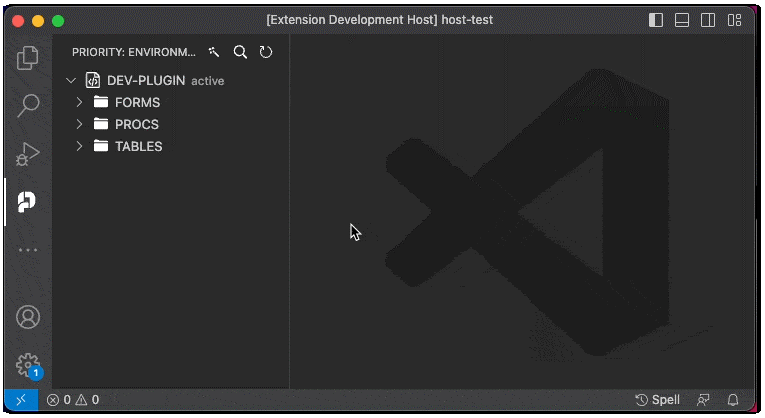
The Environments Explorer is the primary navigation panel for Priority entities in VS Code. Click the Priority icon in the Activity Bar to open it.
Each connected environment contains three expandable folders:
- FORMS — Form definitions and triggers
- PROCS — Procedures and steps
- TABLES — Table structures
Opening Entities
Click any item to open it in the editor:
- Form folder → Opens form trigger file
- Form field → Opens column trigger file
- Procedure step → Opens SQLI step file (for query steps)
- Table → Opens table definition file
Saving a file updates Priority immediately.
Active Environment
Before running WINDBI commands or SQLI, select an active environment:
- Click the environment name in the Environments Explorer.
- The active environment appears highlighted.
- The status bar shows the active environment name.
Breadcrumbs Navigation
When a file is open, breadcrumbs appear at the top of the editor showing the full entity path. Each segment is clickable for quick navigation back through the hierarchy.
Code Editing Features
Syntax Highlighting
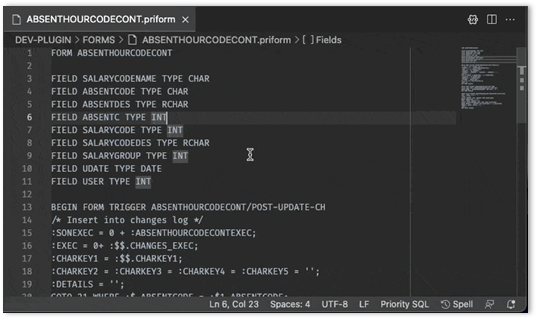
The extension provides full syntax highlighting for Priority SQL code:
- CURSOR blocks — Distinct color for SQL cursors
- System variables — RETVAL, PAR1, SQL.DATE8, etc.
- Built-in functions — ATOI, RTRIM, ENTMESSAGE, etc.
- Keywords — SELECT, WHERE, FROM, GOTO, etc.
- Labels — GOTO targets clearly marked
- Strings and numbers — Standard highlighting
- Comments — Dimmed for readability
- Nested blocks — Indented blocks slightly dimmed
Highlighting adapts to the active VS Code theme (including Light+, Dark+, One Dark, Dracula, and Quiet Light).
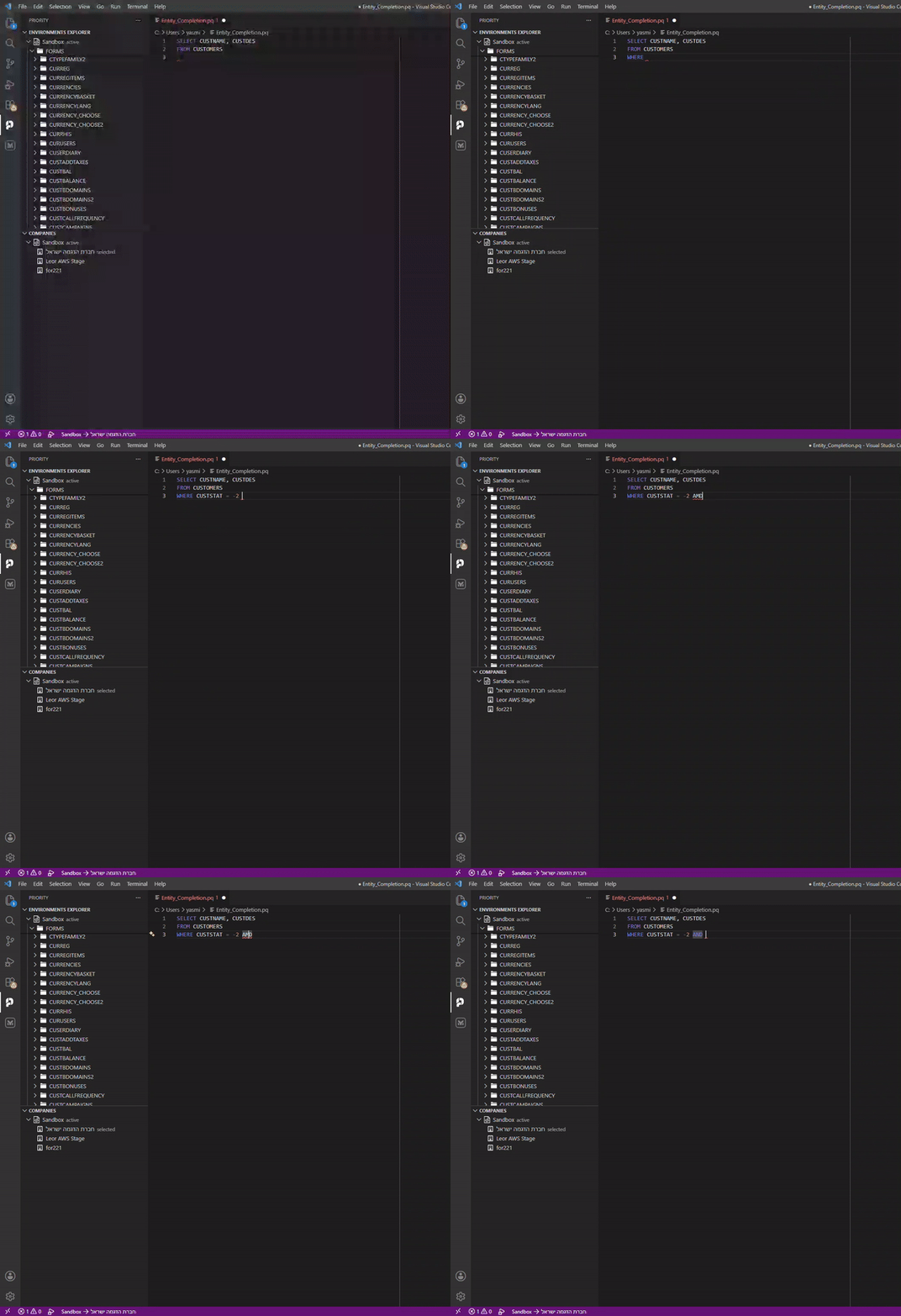
SQLI Syntax Checking
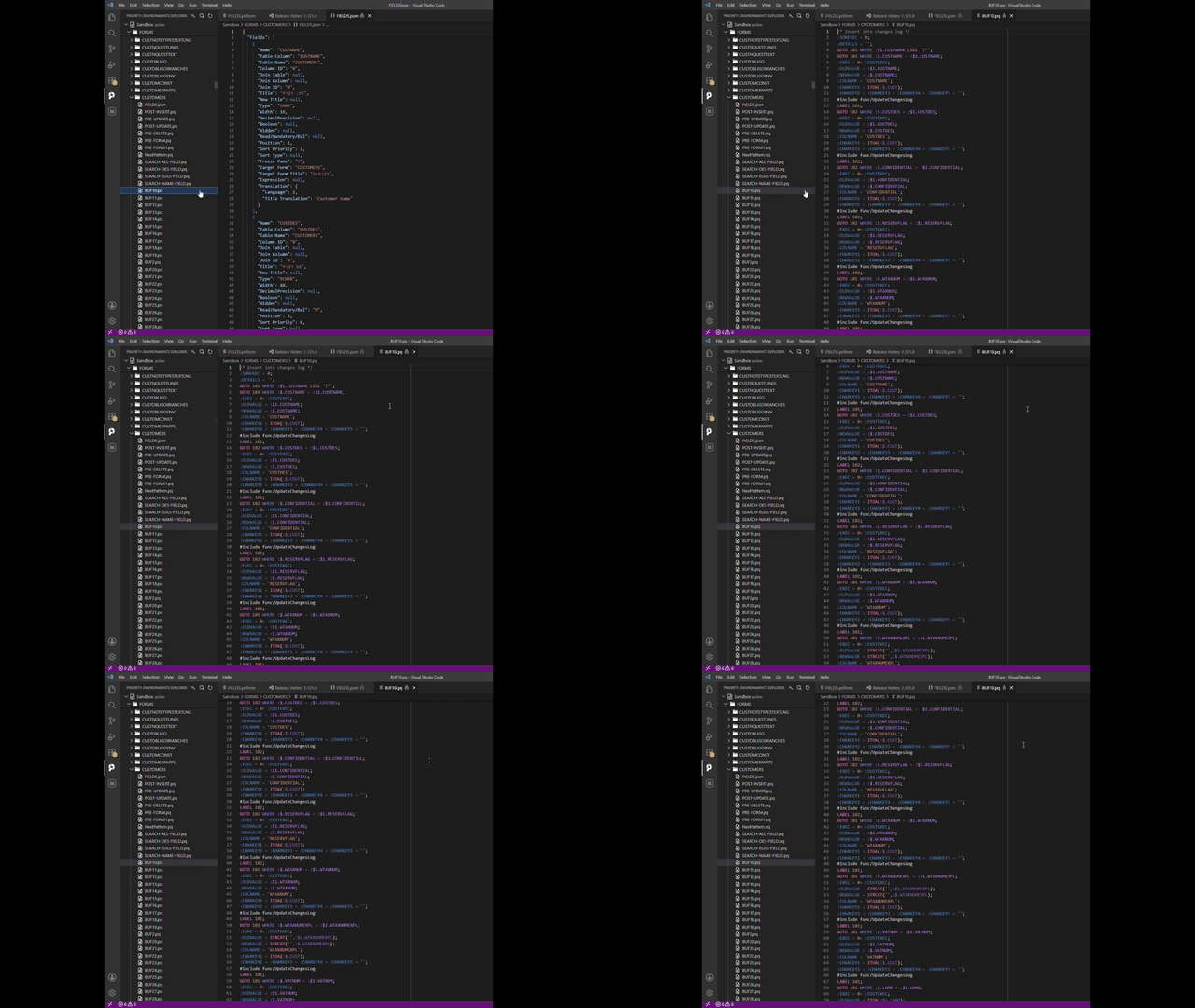
SQLI files (.pq) are validated as you type:
- Syntax errors are underlined in red.
- Hover over underlined code to see error details.
Code Completion (IntelliSense)
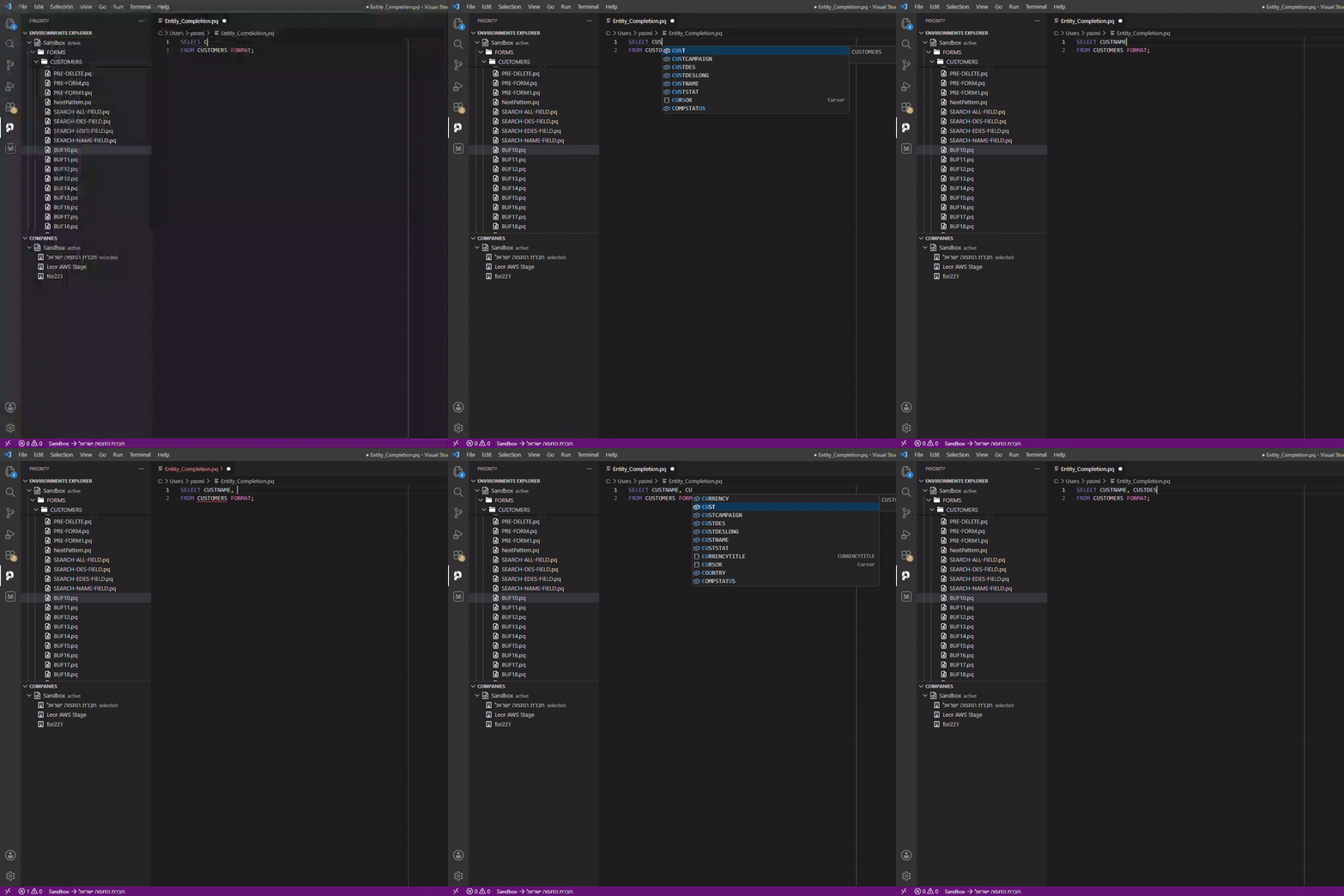
Press Ctrl+Space to trigger code completion. The extension suggests:
- Table Names
- Form Names and Fields
- Form Triggers
- Keywords
- #INCLUDE Statements
Code Snippets
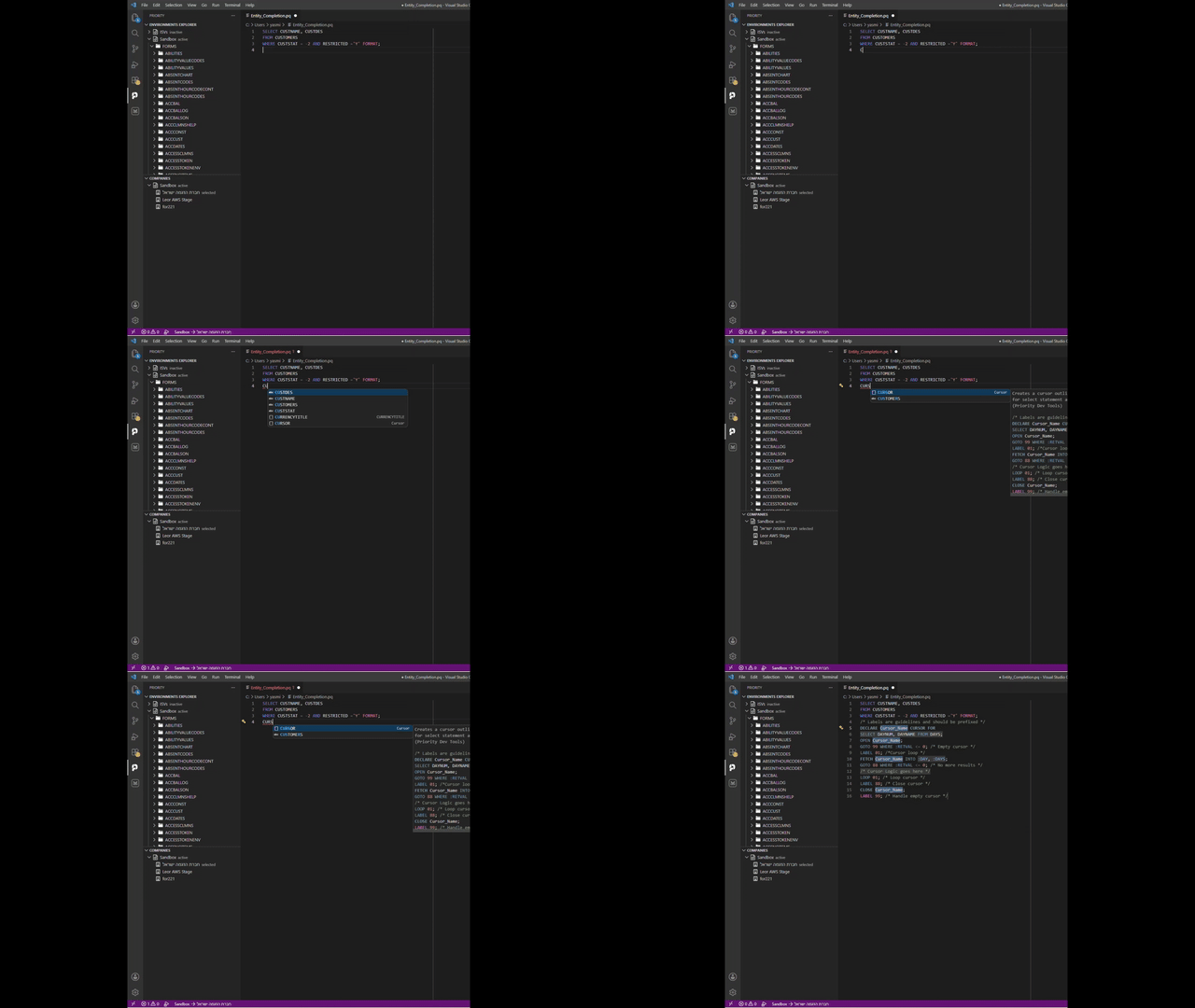
The extension includes ready-made snippets for built-in Priority functions. Snippets insert boilerplate structures for common SQLI and trigger operations, working alongside syntax highlighting and code completion.
#INCLUDE Statements
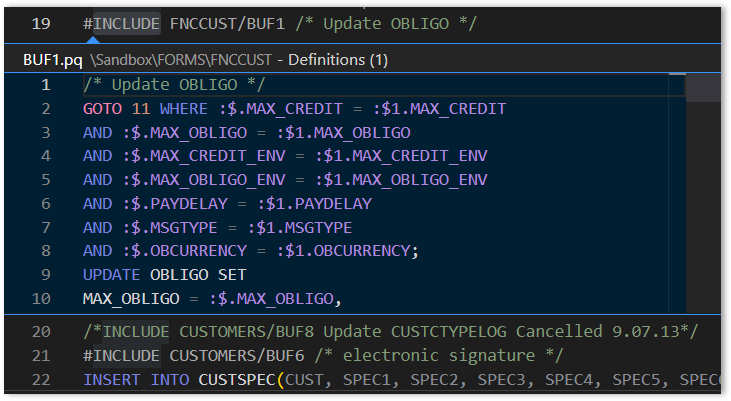
Go to Definition (Ctrl+Click):
Navigates to table definitions, #INCLUDE targets, and label definitions referenced in GOTO statements.
Peek Definition (Alt+F12):
Views definitions inline without leaving the current file.
Line Length Ruler
A vertical ruler appears at column 80 (configurable) to help maintain consistent code formatting for Priority procedures and triggers.
Direct Code Editing
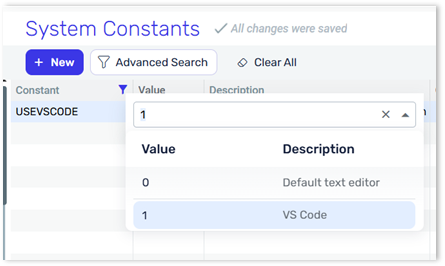
When the USEVSCODE system constant is enabled, pressing F6 from within any trigger or procedure step query in Priority opens the corresponding file in VS Code at the exact code line.
Setup
- Open the System Constants form in Priority.
- Path: System Management > System Maintenance > Constant Forms
- Search for USEVSCODE.
- Set the value to 1.
Inline Error Preview
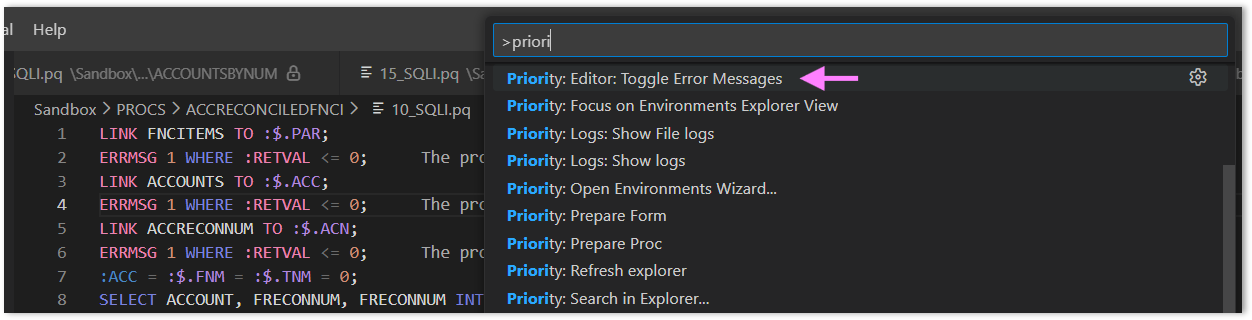
When enabled, the extension displays the text of Priority error and warning messages inline next to ERRMSG and WRNMSG calls, eliminating the need to look up message numbers manually.
Enabling
- Open the Command Palette (
F1). - Type Priority: Editor: Toggle Error Messages.
- Select the command to enable or disable.
Example
ERRMSG 1 WHERE :RETVAL <= 0;
Displays inline as:
"The record was not saved. Please try again." [Message 1]