VSCode Features
VS Code Editor Features
VS Code provides a rich set of editor capabilities that are useful when working with Priority triggers, procedure steps, and SQLI files. The features below are standard VS Code functionality — not specific to the Priority Dev Tools extension.
Note: Keyboard shortcuts are accurate as of November 2025. For the latest, see https://code.visualstudio.com/docs
Keyboard Shortcuts
| Feature | Description | Windows | macOS |
|---|---|---|---|
| Command Palette | Run commands, change settings, execute Priority commands, etc. | Ctrl+Shift+P |
⇧⌘P |
| Quick Open | Open any file by typing part of its name | Ctrl+P |
⌘P |
| Switch Between Open Files | Cycle through open editors in order of most recent use | Ctrl+Tab |
⌘Tab |
| Multi-Cursor Editing | Edit multiple locations at once. Use Alt+Click for manual placement or Ctrl+D to select next matching word | Alt+Click, Ctrl+D |
⌥+Click, ⌘D |
| Search in File | Find text in current file | Ctrl+F |
⌘F |
| Search & Replace | Find and replace in current file | Ctrl+H |
⌘H |
| Search Workspace | Search across all folders with support for regex and filters | Ctrl+Shift+F |
⇧⌘F |
| Split Editor | View two files side by side | Ctrl+\ |
⌘\ |
| Integrated Terminal | Open terminal inside VS Code | Ctrl+` |
⌃` |
| Block Comments | Toggle block comments (useful for Priority SQL) | Shift+Alt+A |
⇧⌥A |
| Move Line Up/Down | Reorder code lines | Alt+↑/↓ |
⌥↑/↓ |
| Copy Line Up/Down | Duplicate current line | Shift+Alt+↑/↓ |
⇧⌥↑/↓ |
| Rename Symbol | Rename variable and update all occurrences | Ctrl+F2 |
^F2 |
| Change Theme | Switch between themes and preview as you navigate the list | Ctrl+K+T |
⌘K+T |
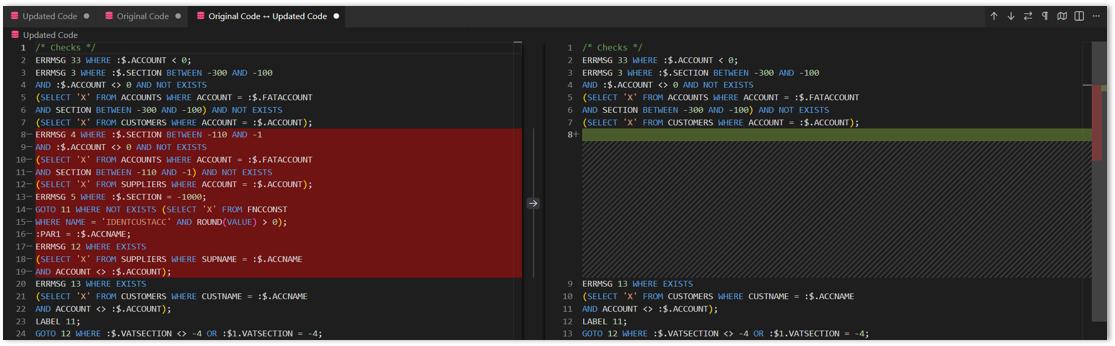
Comparing Files (Diff View)
Before modifying a trigger or procedure step, save a backup copy in your customization project folder. You can then compare the working file against the backup:
-
Right-click the first file → Select for Compare
-
Right-click the second file → Compare with Selected
Recommended Extensions
| Extension | Purpose | Installation |
|---|---|---|
| Todo Tree | Shows all TODO and FIXME comments in a tree view for easy navigation | Install from VS Code Marketplace |
Additional Resources
Tips & Tricks: https://code.visualstudio.com/docs/getstarted/tips-and-tricks
Keyboard Shortcuts:
- Windows: https://code.visualstudio.com/shortcuts/keyboard-shortcuts-windows.pdf
- macOS: https://code.visualstudio.com/shortcuts/keyboard-shortcuts-macos.pdf
Integration with AI Tools
VS Code supports AI coding assistants that can be used alongside Priority development. These tools work at the code level and are not aware of Priority’s broader application context.
Note: AI coding assistants are not trained on Priority development and may generate code that does not conform to Priority’s SQL syntax or conventions. Always validate AI-generated code against Priority’s requirements, your organization’s coding standards, and the relevant business logic before use.
GitHub Copilot
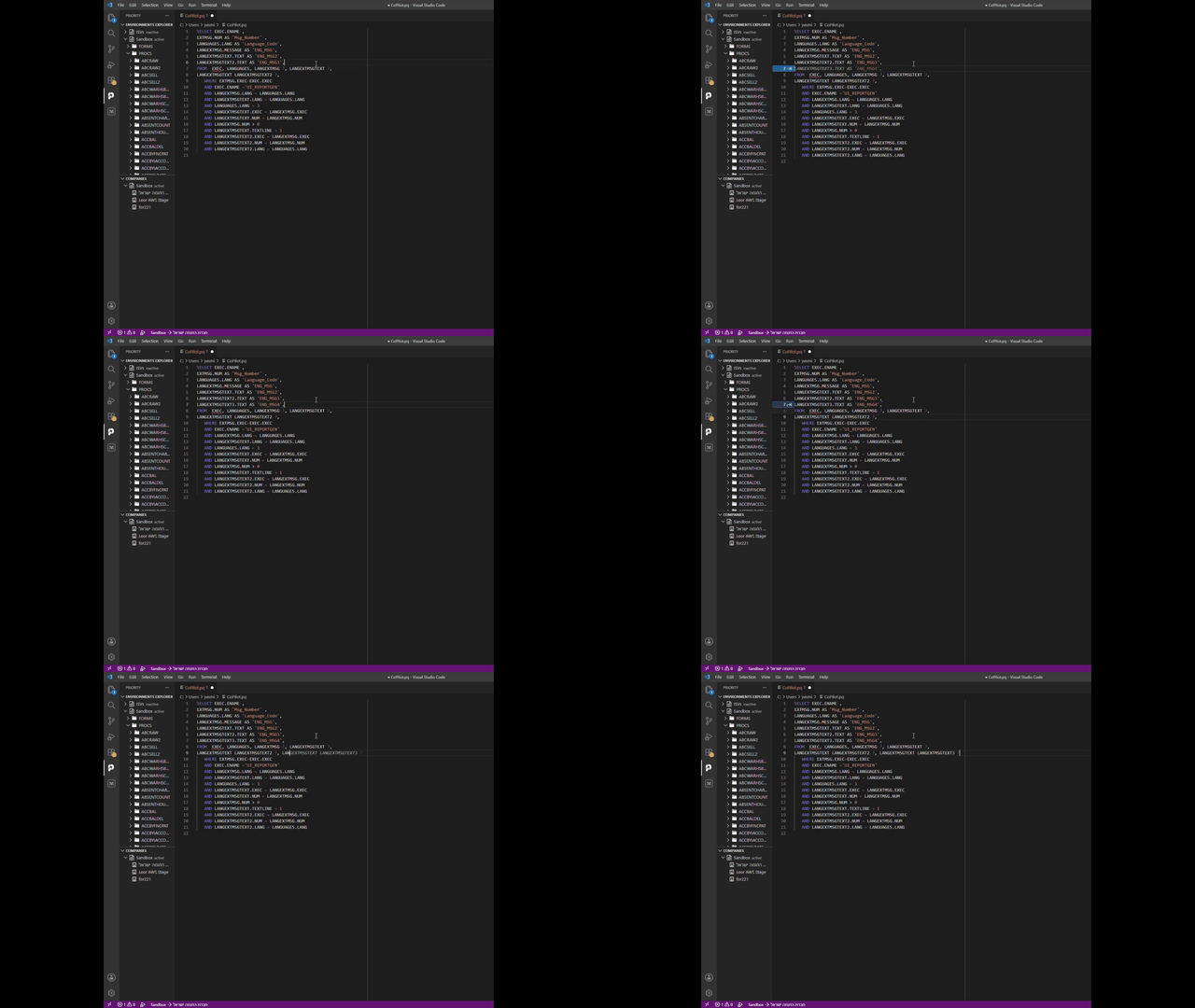
GitHub Copilot provides inline code completion as you type, based primarily on the content of the current file.
Setup:
- Click the Copilot icon in the Activity Bar.
- Select Set up GitHub Copilot.
- Sign in to your GitHub account and follow the authentication prompts.
Documentation: https://code.visualstudio.com/docs/copilot/setup
Cline
Cline is an autonomous coding agent that can plan, modify, and generate changes across multiple files. It can be given context from other files in the workspace, including project-specific coding guidelines.
Setup:
- Open Extensions → Search for “Cline”.
- Install the extension (marketplace link).
- Click the Cline icon in the sidebar.
- Click the Settings icon and configure:
- API Provider: Your provider (e.g., LiteLLM)
- Base URL:
https://litellm.priority-corp.com(or your provider’s URL) - API Key: Provided by your organization
- Model ID: e.g.,
anthropic.claude-4-sonnet
- Click Done.